
SQL Editor
Query your telemetry data using SQL syntax
Parseable provides a powerful SQL editor that allows you to query your telemetry data (logs, metrics, and traces) using PostgreSQL compatible SQL syntax.
Getting Started
- Navigate to the SQL Editor in the Parseable UI
- Select your dataset from the dropdown
- Write your SQL query
- Click "Run" to execute
Features
- Full SQL Support - Use standard SQL queries to analyze your data
- Auto-completion - Intelligent suggestions as you type
- Query History - Access your previous queries
- Export Results - Download query results in various formats
Example Queries
-- Get recent data
SELECT * FROM mystream LIMIT 100

-- Count by level
SELECT level, COUNT(*) as count
FROM mystream
GROUP BY level

-- Filter by time range
SELECT * FROM mystream
WHERE p_timestamp > NOW() - INTERVAL '1 hour'
Query with Regular Expressions
Examples of how to use regular expressions in Parseable queries:
Match regular expression (Case Sensitive)
SELECT * FROM frontend where message ~ 'failing' LIMIT 9000;Match regular expression (Case Insensitive)
SELECT * FROM frontend where message ~* 'application' LIMIT 9000;Does not match regular expression
SELECT * FROM frontend where message !~ 'started' LIMIT 9000;Matches the beginning/end of the string
SELECT * FROM frontend where message ~* '^a' LIMIT 9000;
SELECT * FROM frontend where message ~ 'failing$' LIMIT 9000;
Replace with REGEXP_REPLACE
SELECT REGEXP_REPLACE(uuid,'[0-9]','*','g') FROM frontend LIMIT 9000;Split a string with SPLIT_PART
SELECT SPLIT_PART(email,'@',1) FROM frontend where email is not null LIMIT 10;Pattern matching with LIKE
SELECT * FROM frontend where email LIKE '%test%' LIMIT 10;Case Sensitivity
Dataset column names are case sensitive. To query column names with uppercase letters, use double quotes:
SELECT * FROM dataset WHERE "Foo" = 'bar'Query Analysis
To view the detailed query execution plan, use the EXPLAIN ANALYZE keyword:
EXPLAIN ANALYZE SELECT * FROM frontend LIMIT 100Response Fields Information
To get the query result fields as a part of query API response, add the query parameter fields=true:
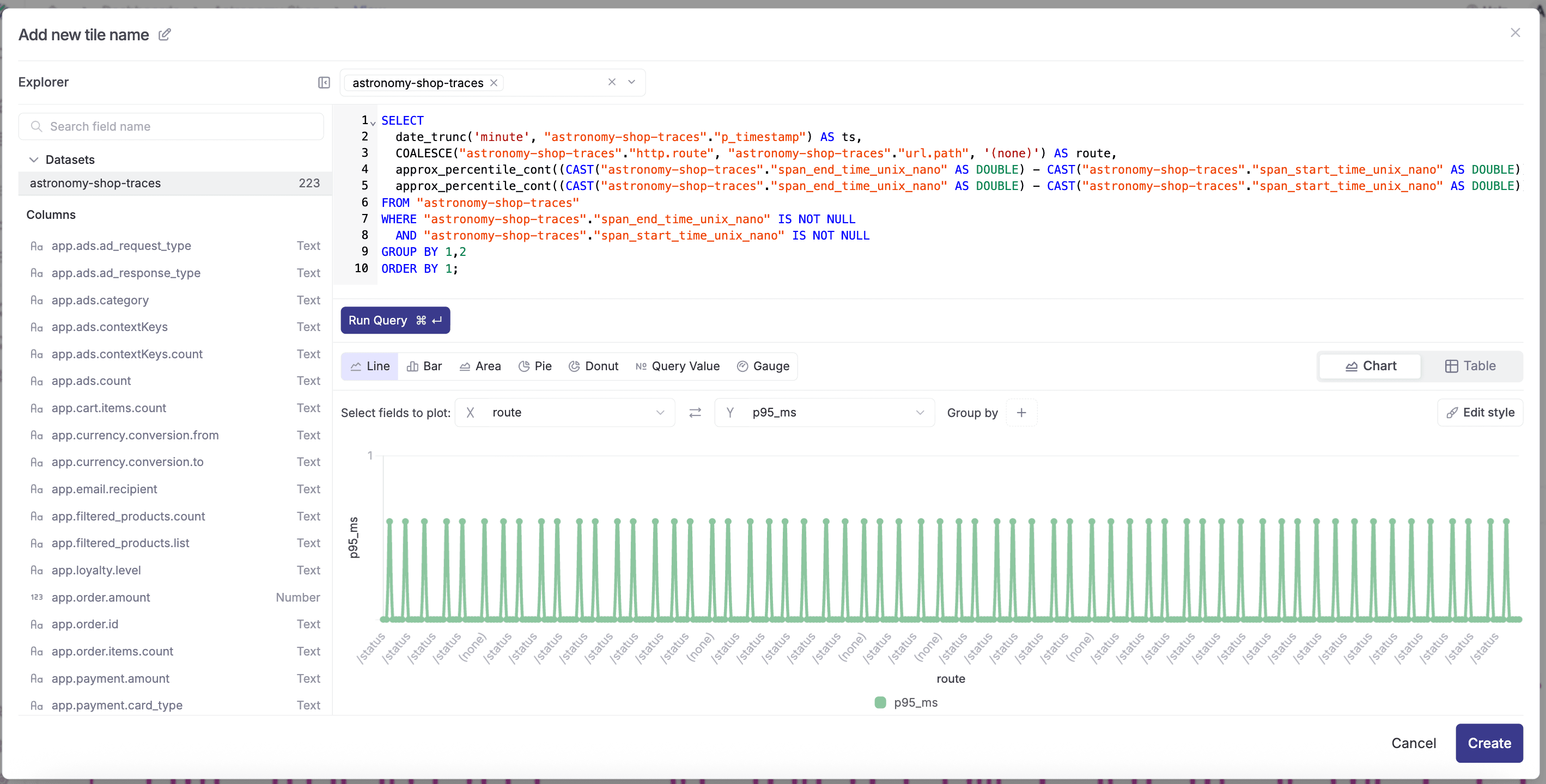
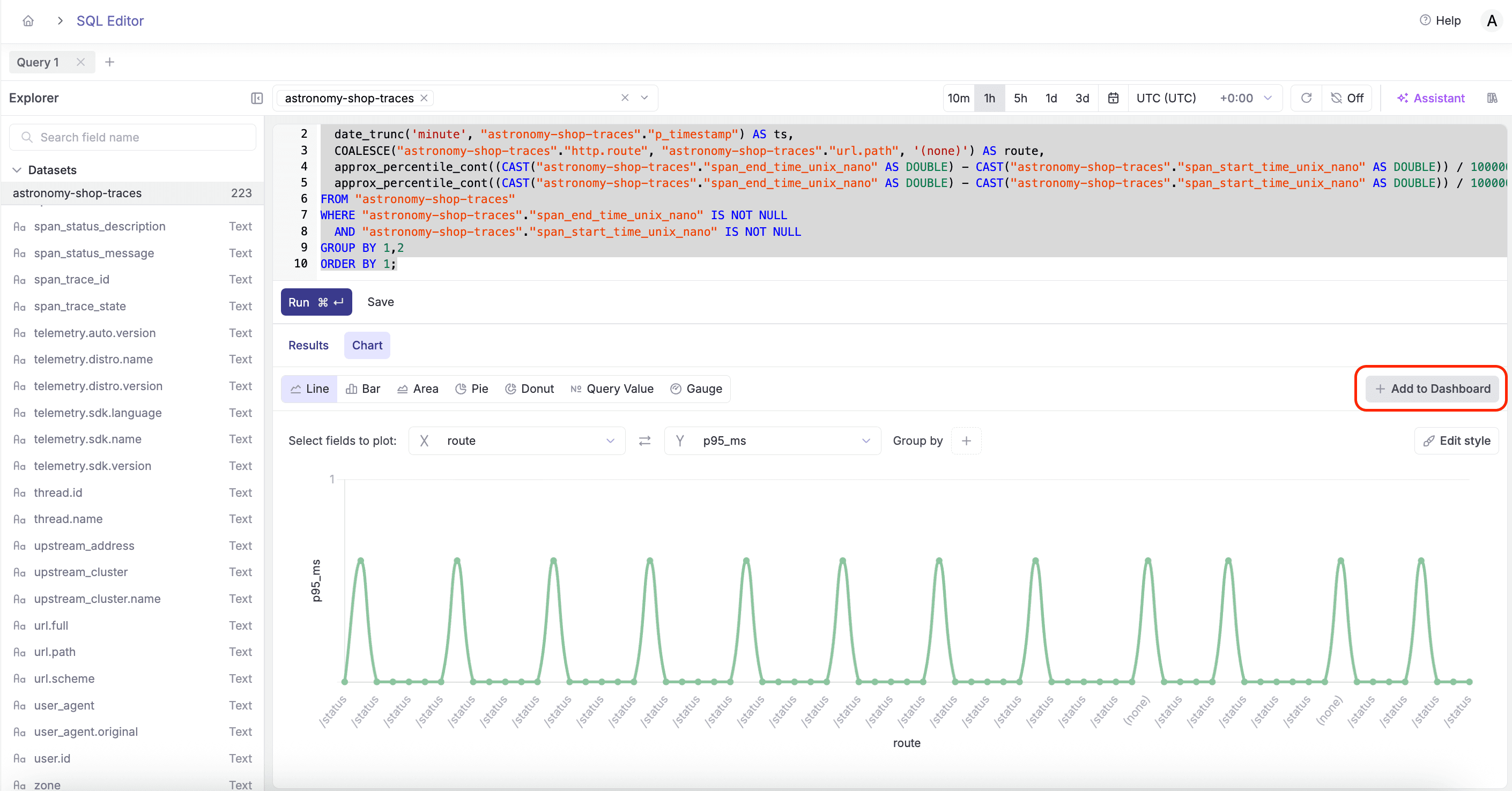
http://localhost:8000/api/v1/query?fields=trueAdd Charts to Dashboard
After running a query, you can visualize the results and add them directly to a dashboard.
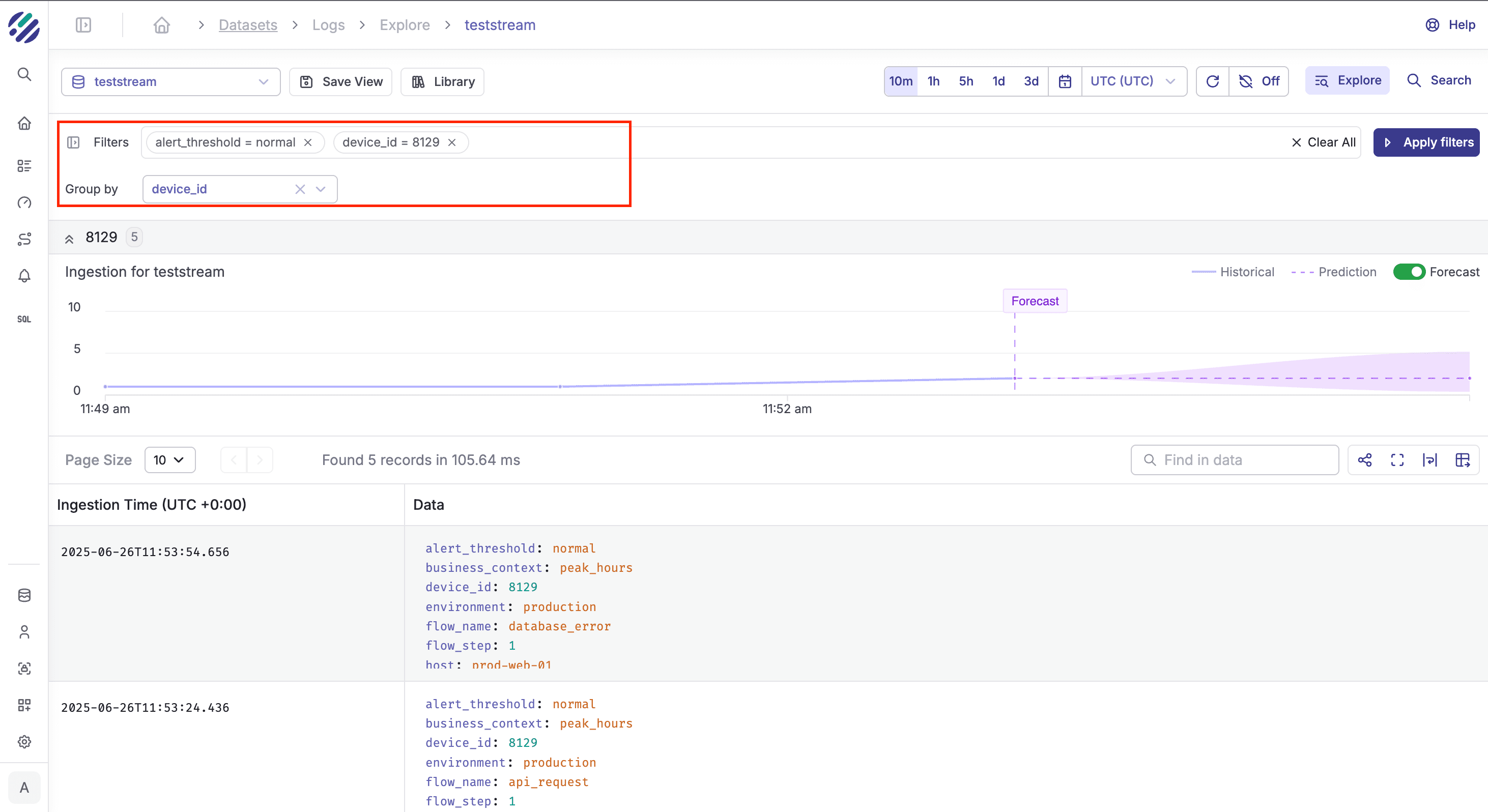
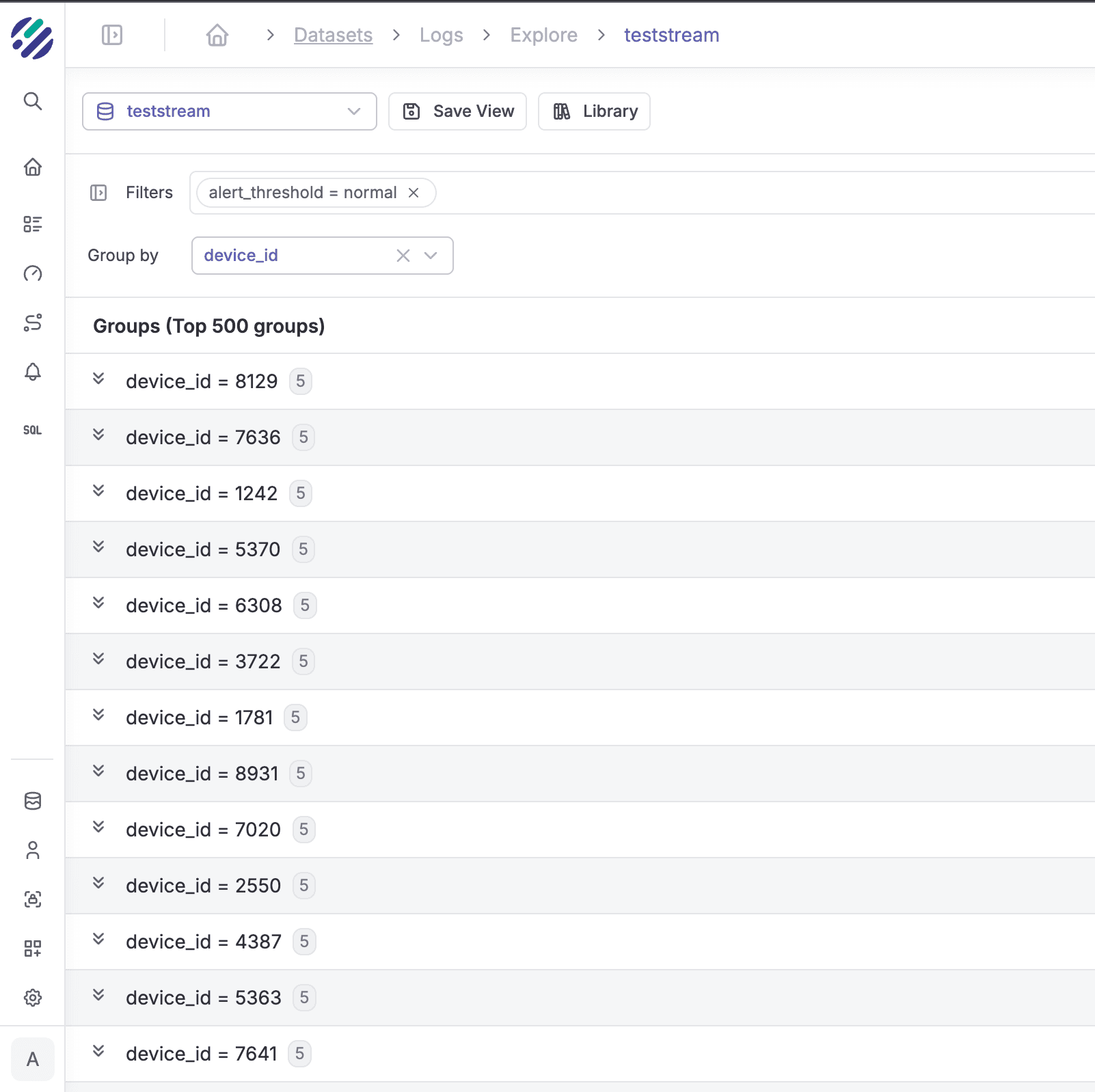
Filters and Group By
Use the filter panel to slice and dice your data, and group results by any field.
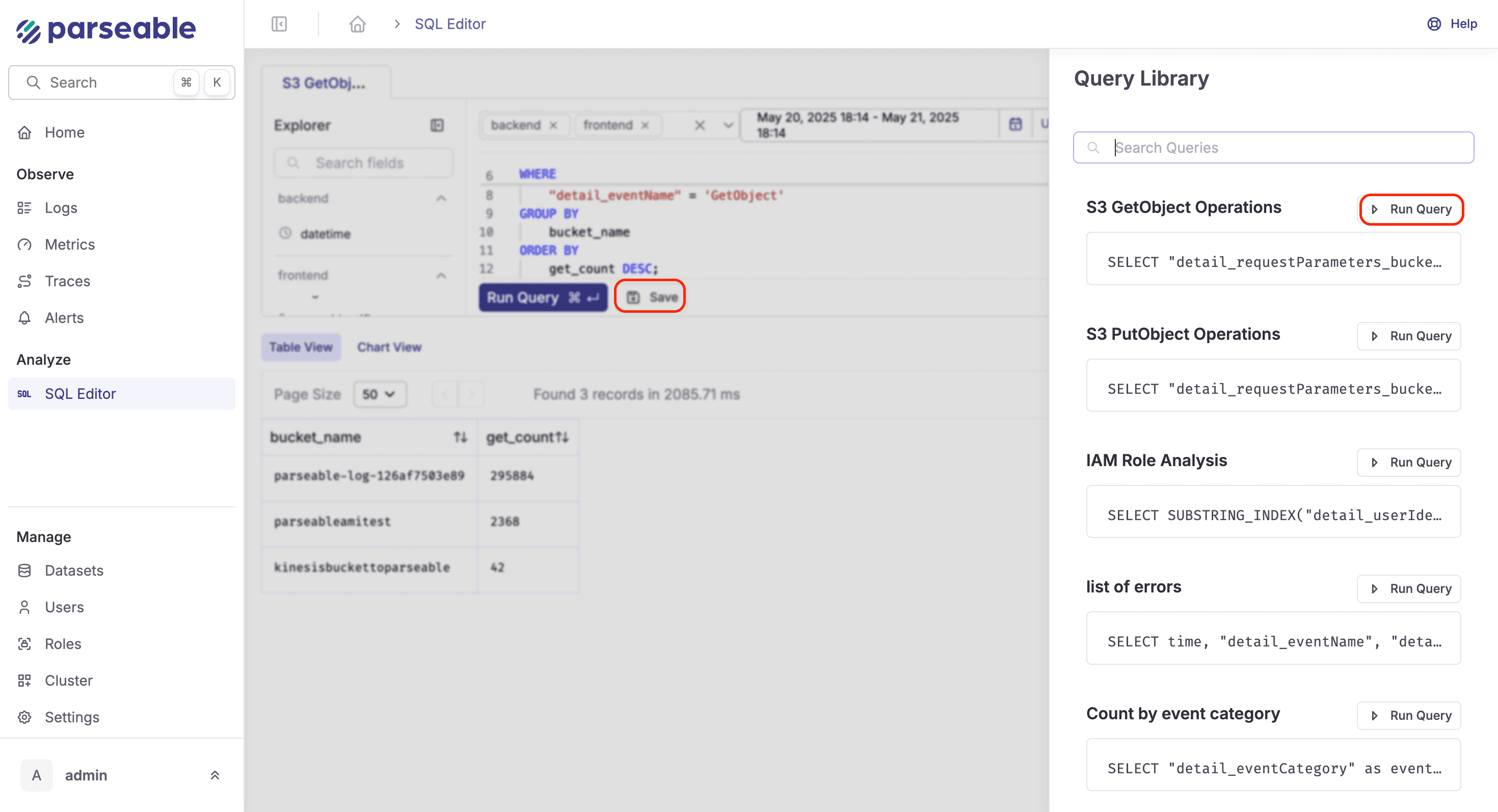
Query Library
Save queries you want to reuse in the Library for quick access.
Tips
- Use
p_timestampfor time-based filtering - Use
LIMITto prevent large result sets - Use
GROUP BYfor aggregations - For AI-powered query generation, see Text to SQL
Was this page helpful?